Guide - 10 min read
How to Make a Lyric Video for Your Song
A good lyric video is not just text over a background. The words need to arrive at the right time, stay readable on the platform where people will watch, and match the energy of the song without forcing you into hours of manual video editing.
Sync the lyrics
Generate or paste lyrics, then fine-tune word or line timing.
Design the video
Choose visualizers, backgrounds, own footage, title cards, and text styles.
Export full or clips
Render the whole song or make shorter lyric clips for social platforms.
Start with the song, not the video editor
Most lyric video workflows become slow because they start in a timeline. You import the song, type the first line, drag the text clip, preview it, adjust the start time, adjust the end time, then repeat the same thing for every line. That can work, but it turns a music task into a lot of tiny manual video edits.
A better workflow is to get the lyrics and timing right first. LyricTime listens to the song, creates timed lyrics, and lets you review the result before you design the video. Once the words are synced, you can send the same timing into a subtitle export, a karaoke file, or the Lyric Video Studio.
That separation matters. Timing is the technical part. Visual design is the creative part. When the timing is already handled, you can spend your energy on the look of the lyric video instead of rebuilding timestamps by hand.
Why not just use a general video editor?
Premiere, CapCut, and DaVinci are built to edit anything — footage, audio, graphics, effects. That flexibility is also why lyric videos take so long in them: nothing about lyric timing is built in, so every line has to be placed, timed, and positioned by hand.
General video editor
Blank timeline. You type each line, drag it into place, set a start and end time, then repeat for every line in the song.
LyricTime Video Studio
Built only for this job. The lyrics are already timed before you open it, so there is nothing to drag, type, or keyframe line by line.
A purpose-built tool does not need to be less powerful — it just already knows what a lyric video needs: readable text, correct timing, and a layout that fits the platform. There is nothing to configure before you can start designing.
Choose word timing or line timing
Lyric videos can work in two main timing styles. Line timing shows a full lyric line as it is sung. It is clean, fast to read, and works well for subtitles, YouTube descriptions, CapCut imports, and simpler lyric videos.
Word timing highlights the individual word as the vocal reaches it. That feels more like karaoke and is better when the rhythm matters: fast rap, chant sections, hooks, or any part where viewers should feel the words moving with the beat.
You do not have to treat one as more professional than the other. A sparse acoustic song might look better with calm line-by-line lyrics. A chorus built around a memorable phrase might benefit from word-by-word movement. The important thing is choosing the timing style that helps the viewer follow the song.
A practical lyric video workflow
- Upload the final song file. Use the version you actually plan to publish so the timing matches the finished audio.
- Generate or sync the lyrics. Start from audio alone, or paste trusted lyrics and let LyricTime align them to the performance.
- Review the words and timing. Fix misheard words, split long lines, and adjust any moment that feels early or late.
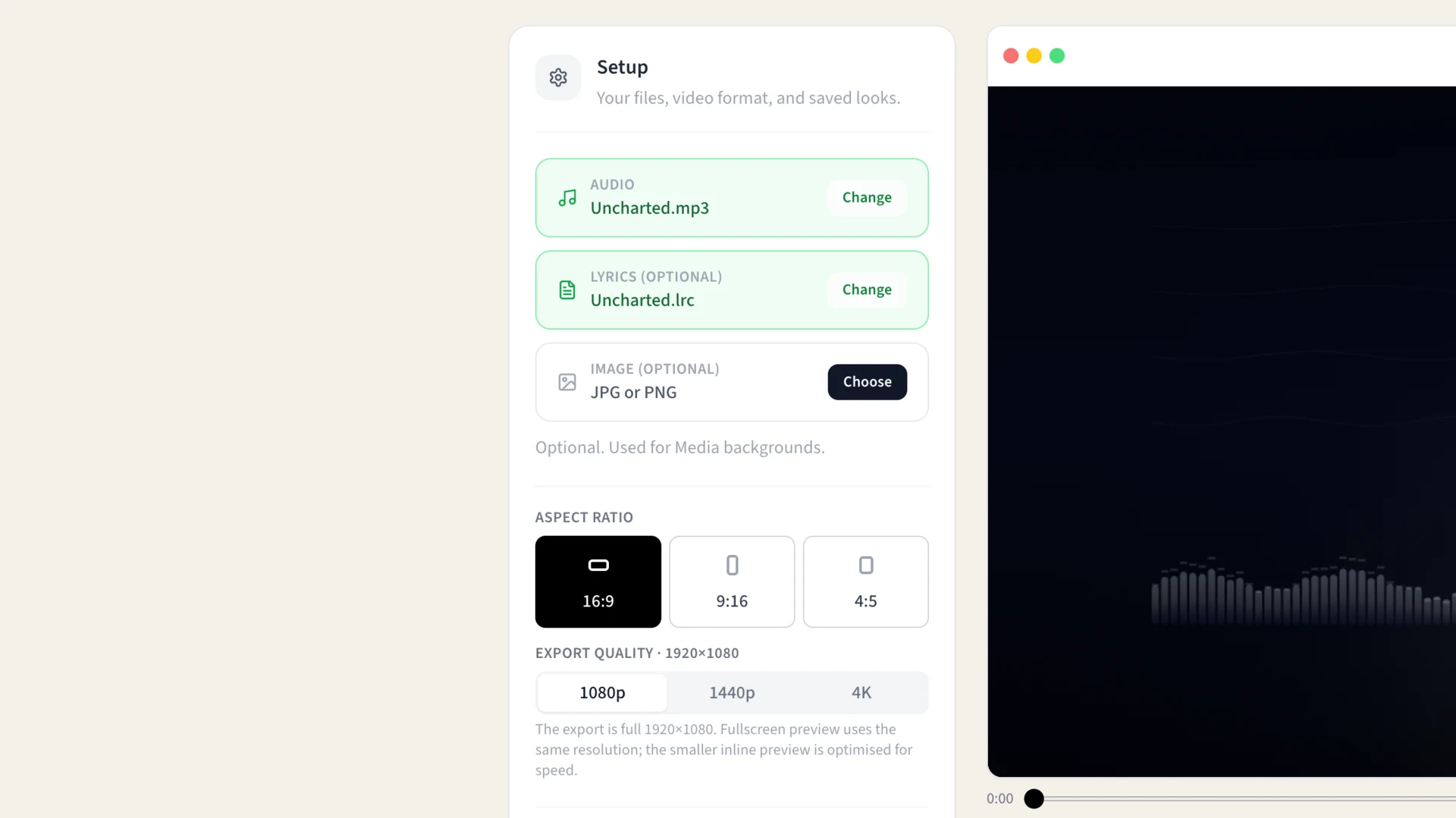
- Open the Video Studio. Choose the visual style, background, aspect ratio, title card, and export settings.
- Export the right version. Render the full song for YouTube, or create shorter clips for TikTok, Reels, and Shorts.
Pick the visual style before you pick the font
Fonts matter, but the overall visual idea matters more. A lyric video can be a simple animated visualizer, a song cover with moving words, a full-screen background image, abstract motion, or your own video with lyrics composited on top.
For a release announcement, a cover-art style lyric video can be enough. For a full YouTube upload, a slow-moving background with readable lyrics is usually better than a design that changes every few seconds. For a hook clip, stronger motion and bigger words can help the line land quickly on a phone screen.
The Lyric Video Studio supports audio-reactive visualizers, background styles, images, own video uploads, title treatments, cover image layouts, and MP4 export. The complete Studio is free; free-user exports include the LyricTime watermark and customers export clean videos.
Choose the right aspect ratio
Aspect ratio changes how your lyric video feels. A widescreen lyric video gives you room for longer lines and a more cinematic layout. A vertical video needs larger text, shorter lines, and more attention to safe areas because platform buttons and captions compete for space.
If you are not sure where the video will live, make one widescreen version for YouTube and one vertical clip for social. Reusing the same synced lyrics makes that much easier than starting over in a video editor each time.
Full song or short clip?
A full lyric video is best when someone is already interested in the whole song: YouTube, artist websites, release pages, fan sharing, and long-form listening. It gives the track a finished visual version without needing a full music video shoot.
A short clip has a different job. It is for discovery. The goal is to turn the strongest 15, 30, 60, or 90 seconds into a vertical or social post that makes someone stop scrolling. That might be the chorus, a punchline, the opening line, or the most emotional moment.
This is why clips deserve their own workflow. You still need synced lyrics and good visual design, but you also need to think like an editor: where does the clip start, how long does it run, and does the text stay readable on a phone?
Keep mobile readable
Use shorter lines, larger text, and strong contrast for vertical videos.
Cut from the best moment
Start the clip where the hook or strongest lyric begins, not always at 0:00.
Export per platform
Use vertical for Shorts and Reels, social for feed posts, and widescreen for YouTube.
What makes a lyric video feel finished?
The timing should feel locked to the vocal. The text should be readable on the smallest screen where it will be watched. The background should support the lyric instead of fighting it. And the export should match the platform rather than forcing one layout everywhere.
You do not need a complicated edit to make that happen. You need reliable lyric timing, a focused visual idea, and the right export format. Once those parts are in place, the lyric video can be simple and still feel polished.
Common questions
Do I need any video editing experience?
No. The Studio has no timeline, no keyframes, and no clips to arrange. You pick a visual style and a format, and the timing is already handled from the sync step.
Why not just use CapCut, Premiere, or DaVinci?
Those are general-purpose editors — great for cutting footage, but every lyric line has to be added and timed by hand. The Studio is purpose-built for lyric videos specifically, so the parts a general editor makes you configure manually are already done.
Do I have to re-time the lyrics for a different aspect ratio?
No. The sync only happens once. Switching between vertical, social, and widescreen changes the layout and export, not the timing.
Can I still use my SRT export in a video editor if I want more control?
Yes. Exporting SRT, LRC, or VTT works alongside the Studio, so you can use the fast path for most videos and fall back to a full editor when you want a more custom edit.
Make a Lyric Video from Your Song
Sync the lyrics first, then open the Video Studio to design a full lyric video or a shorter clip.
Free Studio with watermarked exports • Customers export clean videos
