Guide • 7 min read
How to Make a Lyric Video From a Suno Song
Step-by-step: how to go from AI-generated audio to synced lyrics, then either make the lyric video in LyricTime or export subtitles for your video editor.
You've generated a track in Suno. It sounds great. Now you want to do something with it — a lyric video, a TikTok, a YouTube upload with subtitles. And you've just discovered the problem.
Suno gives you audio. That's it. No lyrics file, no timestamps, no subtitle export. If you want words on screen in sync with your song, you're on your own.
Here's the complete workflow to go from Suno audio to a finished lyric video. The fastest path is to sync the lyrics in LyricTime and open the Video Studio. If you want a more advanced edit, you can still export SRT and finish in CapCut, Premiere Pro, DaVinci Resolve, or another video editor.
Before You Start: Why You Can't Use Your Suno Prompt
One thing worth understanding first: your original lyrics prompt is not usable as a subtitle file.
When Suno generates a song from your lyrics, it interprets them. It adds ad-libs between lines. It stretches syllables. It adds harmonies and backing vocals. It changes the phrasing of lines to fit the melody it creates. What actually comes out of the speakers is often significantly different from what you typed in.
If you paste your prompt into a subtitle file and try to sync it to the audio, you'll constantly be out of time. You need to work from the audio itself — transcribe what's actually being sung, not what you intended. That's what this workflow does.
Stage 1: Sync the Lyrics from the Suno Audio (2 minutes)
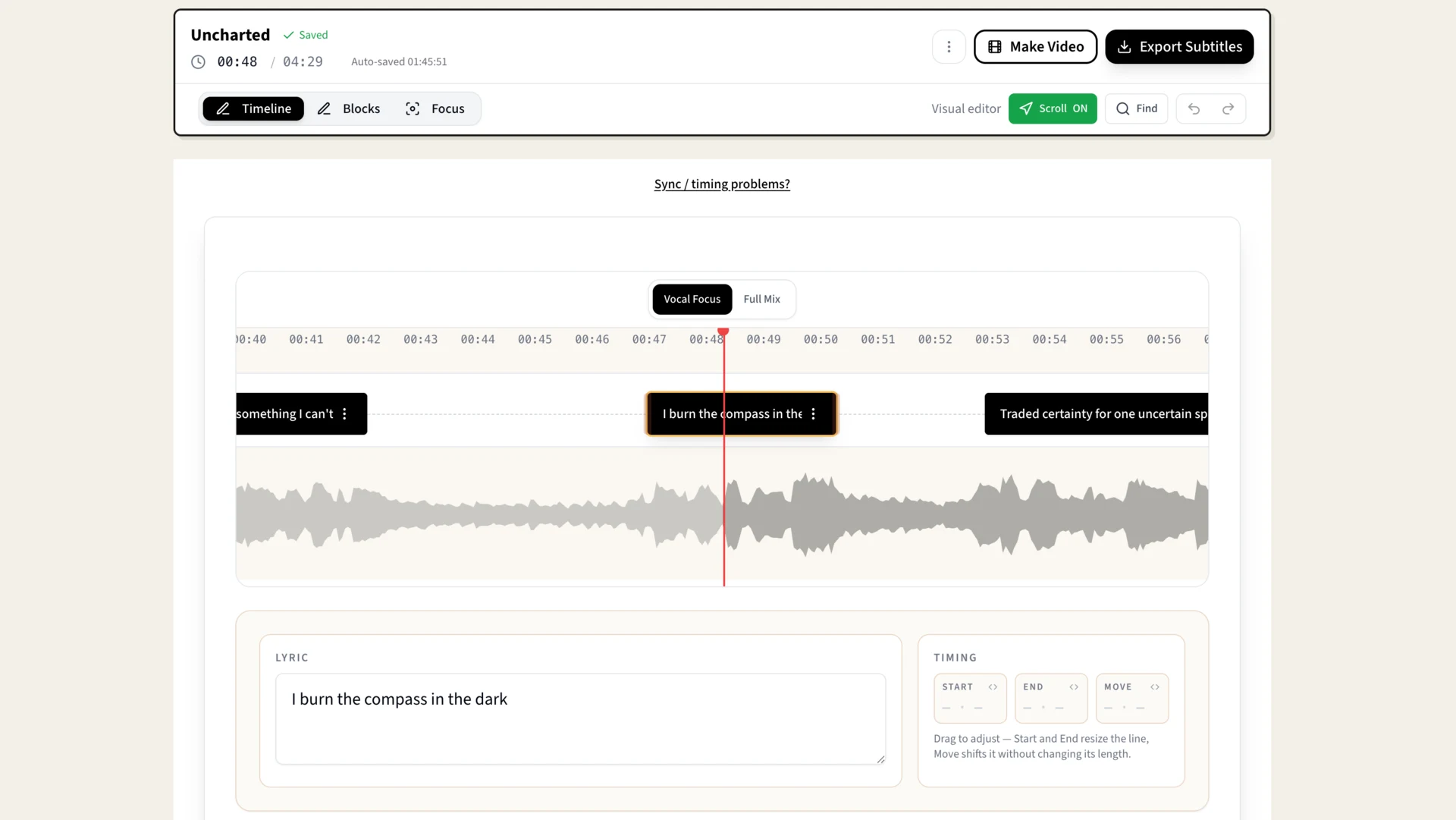
Go to LyricTime and upload your Suno MP3. The AI listens to the audio and transcribes the actual vocals — including any ad-libs or phrasing changes Suno added — with timestamps for every line.
In about 30 seconds you'll have a draft. Accuracy is around 95% for most tracks, which means you might need to fix an occasional word — but the timestamps are solid. You're not redoing the timing from scratch, just correcting the odd transcription error.
Once you're happy with it, you have two useful paths:
- Open the Video Studio if you want to design and export the lyric video in LyricTime.
- Export SRT if you want to finish the edit in CapCut, Premiere Pro, DaVinci Resolve, Final Cut Pro, or iMovie.
- Export LRC or VTT if you also need synced lyrics for music players, karaoke tools, or web video players.
Stage 2: Make the Lyric Video in LyricTime
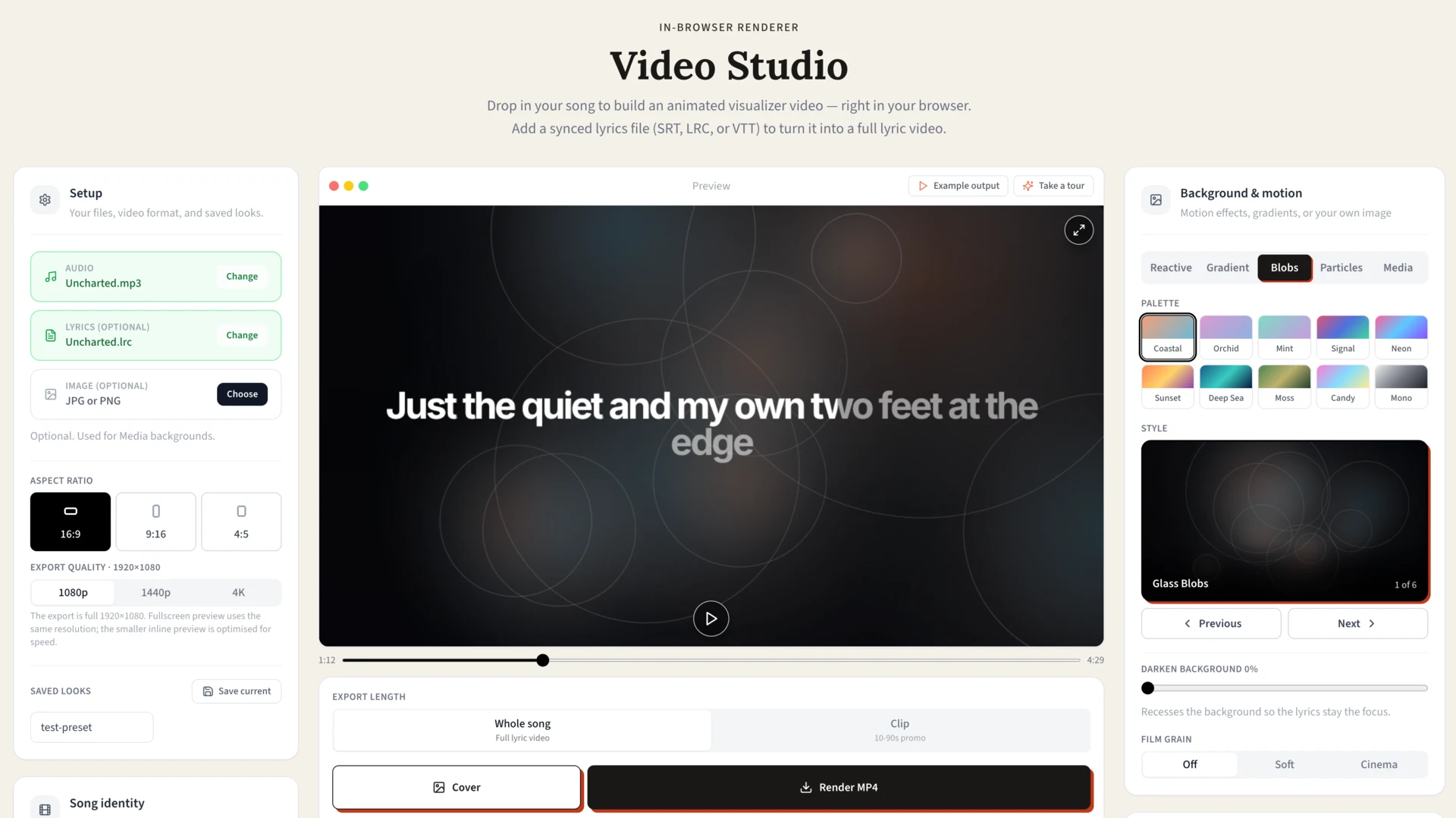
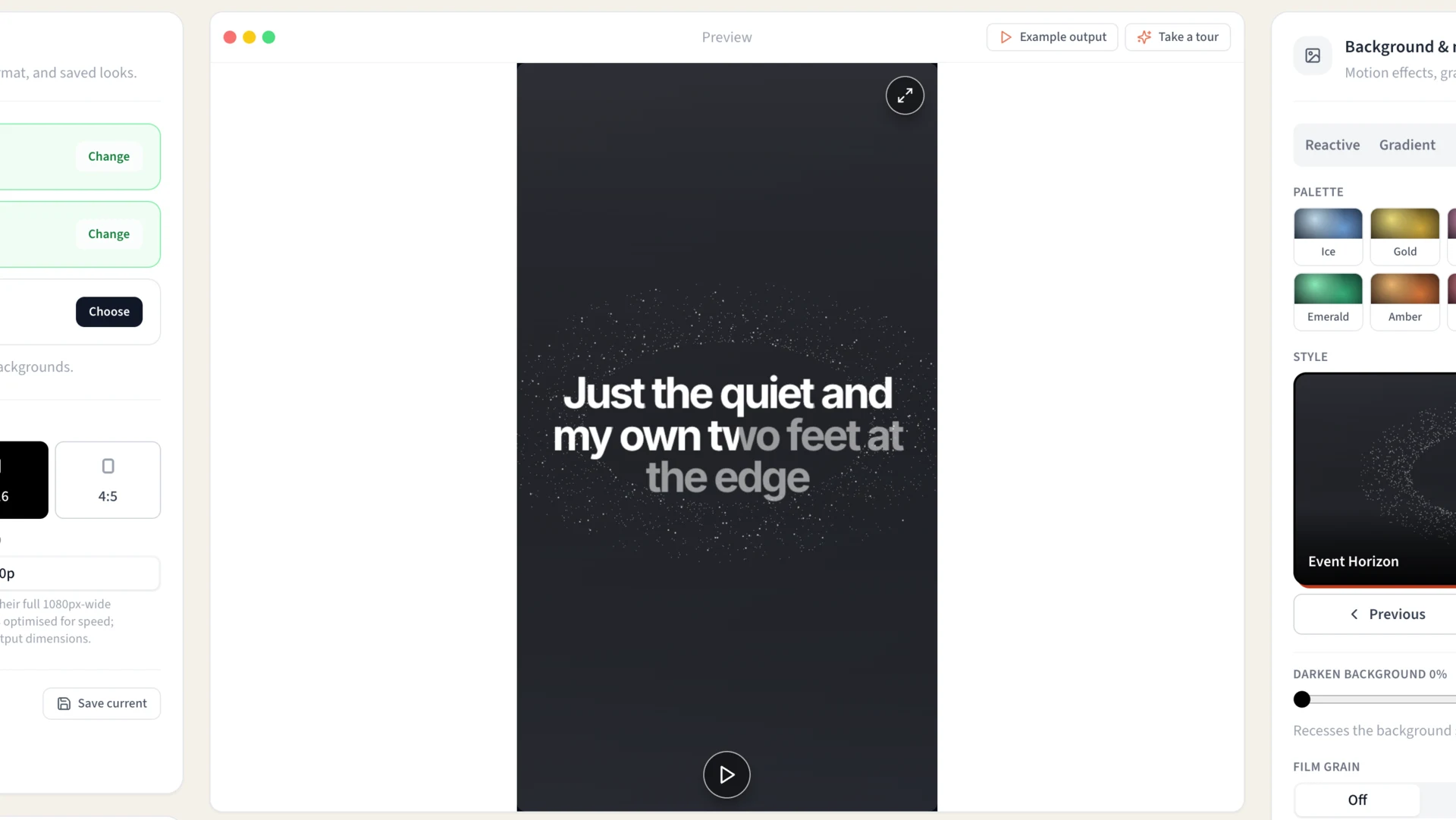
If you do not need a complex edit, the simplest route is to send the synced lyrics into the Lyric Video Studio. You can choose a background, add audio-reactive visuals, style the lyrics, pick an aspect ratio, and export an MP4 in the browser.
This is the fast path because the Studio is built only for lyric videos, not general editing. There is no timeline to learn and nothing to configure before you start: the lyric timing already came from Stage 1, so opening the Studio goes straight to picking a look. Compare that to the CapCut/DaVinci/Premiere route below, where you still have to import the SRT, place it on a track, and style each caption yourself.
This works well for full YouTube lyric videos, vertical social posts, 4:5 feed previews, and shorter clips built from the strongest part of the song. Because the lyrics are already timed, you are not dragging text clips around a timeline line by line — and switching between vertical, social, or widescreen is a format choice, not a re-edit.
The Studio also supports your own video footage. That means you can place synced Suno lyrics over a visual loop, performance-style clip, AI video, or background footage and export one finished file. If you want more manual control than that gives you — custom animations, multi-track edits, color grading — that is when exporting SRT into a full editor makes sense instead.
Alternative: Bring SRT Into Your Video Editor (5 minutes)
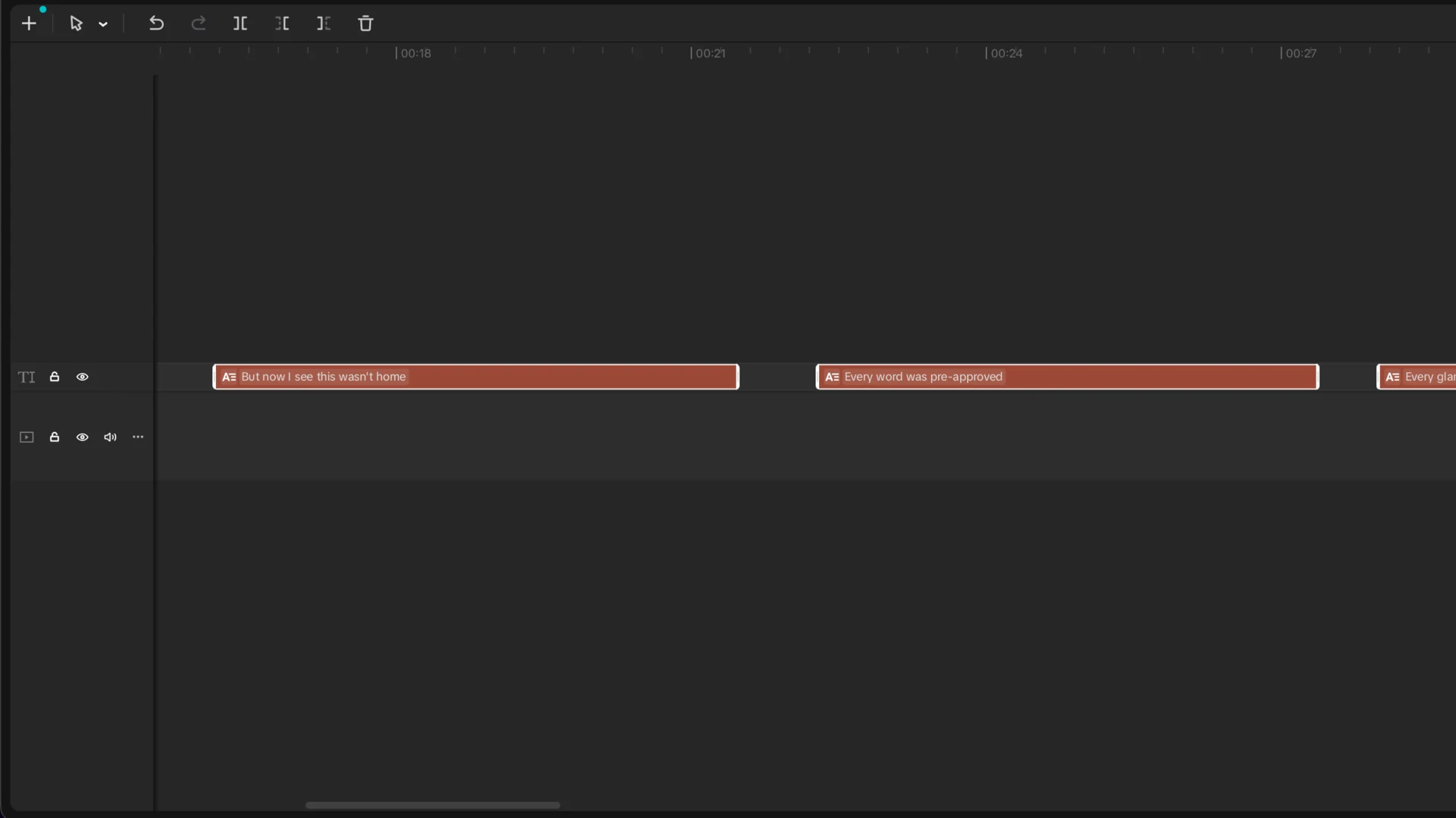
If you want more control than the Studio workflow gives you, export SRT and finish in your video editor. The exact steps depend on your editor, but the principle is the same everywhere: import your Suno audio, import your SRT file, and the subtitles snap into place on the timeline.
CapCut (free, mobile and desktop)
New project → add your audio → tap Text → Auto Captions → Import SRT → select your file. The captions appear on the timeline already timed. Style them however you want — font, size, colour, position.
DaVinci Resolve (free desktop)
Drop your audio on the timeline → go to the Edit page → File → Import Subtitle → select your SRT. The subtitles appear as a separate track. Double-click any caption to edit the text or adjust timing.
Premiere Pro
File → Import → select your SRT → drag it to the timeline above your audio track. Each subtitle appears as a separate caption clip you can style individually.
For TikTok specifically
Edit in CapCut, which is designed for it. Style your captions, add background colour or outline for readability, export and upload directly. CapCut's SRT import is the smoothest of any of the free tools.
Stage 3: Style and Export for the Platform
A few things that make lyric videos actually watchable:
Contrast is everything. White text on a light background is unreadable. Either add a dark outline, a semi-transparent background behind the text, or position lyrics over a darker part of your video.
One line at a time works better than two. Viewers read ahead if you show too many words at once and stop listening. Keep it to one short line at a time, displayed for exactly as long as it's sung.
Don't over-style it. On TikTok and Reels, the content matters more than the design. A clean font with a simple outline beats elaborate animated typography that's hard to read on a phone screen.
For export: if it's going to TikTok, Instagram Reels, or YouTube Shorts, use vertical. For YouTube, use widescreen. For feed previews, social (4:5) can work well. LyricTime's Studio includes vertical, social, and widescreen export options; video editors usually handle the same formats through project settings.
The Full Workflow, Summarised
- Generate your song in Suno, download as MP3
- Upload to LyricTime, wait 30 seconds
- Review the transcript, fix any odd words
- Open the Video Studio to make the lyric video in LyricTime
- Choose a background, visualizer, own footage, text style, and aspect ratio
- Export a full MP4 or a shorter clip
If you want to finish in another editor instead, export SRT after step 3, import it alongside the audio, then style the captions there. Either way, you are avoiding 2-3 hours of manual timing.
Non-English tracks work too. If your Suno song is in Spanish, Japanese, Italian, Korean, or another language, the transcription works the same way. LyricTime handles non-English vocals well, which is useful if you're generating multilingual content or working with AI music in languages beyond English.
FAQ
Does this work with Udio too?
Yes. The workflow is identical — download your audio from Udio, upload to LyricTime, get your subtitle file. Any AI music generator with vocals works the same way.
What if Suno added harmonies I don't want in the subtitles?
The transcription focuses on the main vocal line. Use the editor to delete any lines that captured backing vocals you don't want to show on screen. It takes about 30 seconds to clean up.
Can I adjust the timing if a subtitle is slightly off?
Yes — the LyricTime editor lets you nudge timestamps earlier or later with one click. You can also type exact times manually for any line.
Can I make the video inside LyricTime?
Yes. Once the Suno lyrics are synced, you can open the Lyric Video Studio, choose a visual style, and export a finished MP4 or a shorter social clip.
What does it cost?
Try the public demo to see the editor and timing quality before you spend anything. Processing your own song is pay-as-you-go: $3 for 30 minutes of audio, which covers a lot of songs, and your minutes never expire.
Turn Your Suno Song into a Lyric Video
Upload your AI track, sync the lyrics, then open the Studio or export SRT for your editor.
Paid minutes start at $3 • Monthly and one-time options
