How to Add Lyrics to Spotify Local Files

Digital music visualization

Guide • 6 min read

How to Add Lyrics to Spotify Local Files

Spotify shows synced lyrics for streamed songs, but your local files are left out. Here's how to add lyrics to your own MP3s so they display properly in music players.

The Spotify Local Files Lyrics Problem

Spotify's lyrics feature is one of its best additions in recent years — watching words scroll in sync as music plays feels almost magical. But there's a frustrating limitation: it only works for songs in Spotify's catalog. Your local files get nothing.

This affects anyone with music that isn't on streaming services:

  • Bandcamp purchases — Independent artists you've supported directly, often not on Spotify at all.
  • Ripped CDs — Your physical collection digitized. Especially older or rare albums.
  • DJ mixes & bootlegs — Live recordings, mixtapes, unofficial releases that will never be on streaming.
  • Your own music — Demos, works in progress, or finished tracks you haven't released.

In communities like r/spotify and r/musichoarder, this comes up constantly. Users want the same lyrics experience for their entire library, not just the streaming portion. The problem is that Spotify pulls lyrics from their licensed database (Musixmatch) — they have no mechanism to read lyrics from your local files.

Important: Even if you embed lyrics in your MP3's metadata, Spotify ignores them. The app only shows lyrics from their server-side database. This is a deliberate limitation, not a technical one.

The Workaround: Embed Lyrics for Other Players

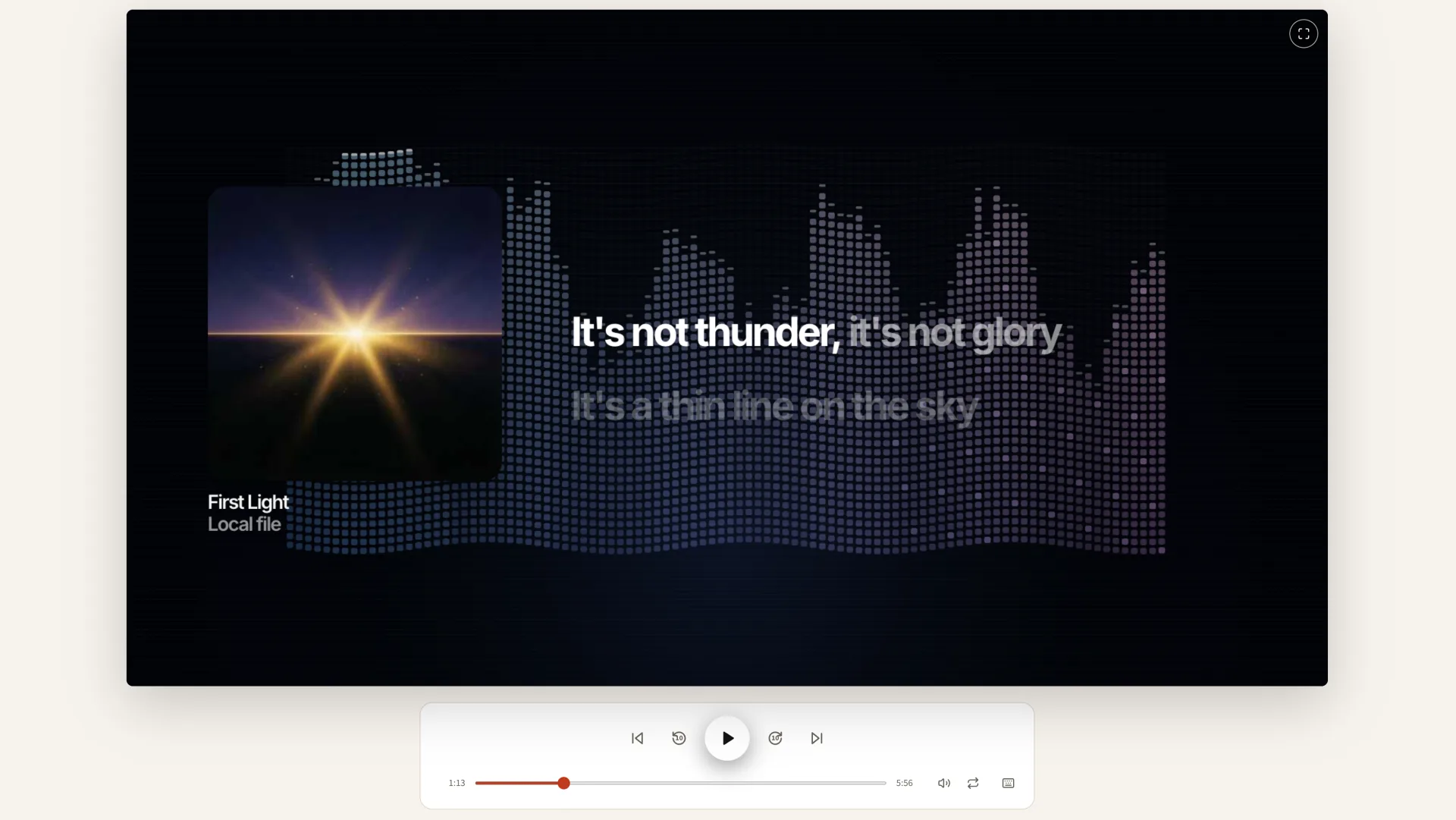
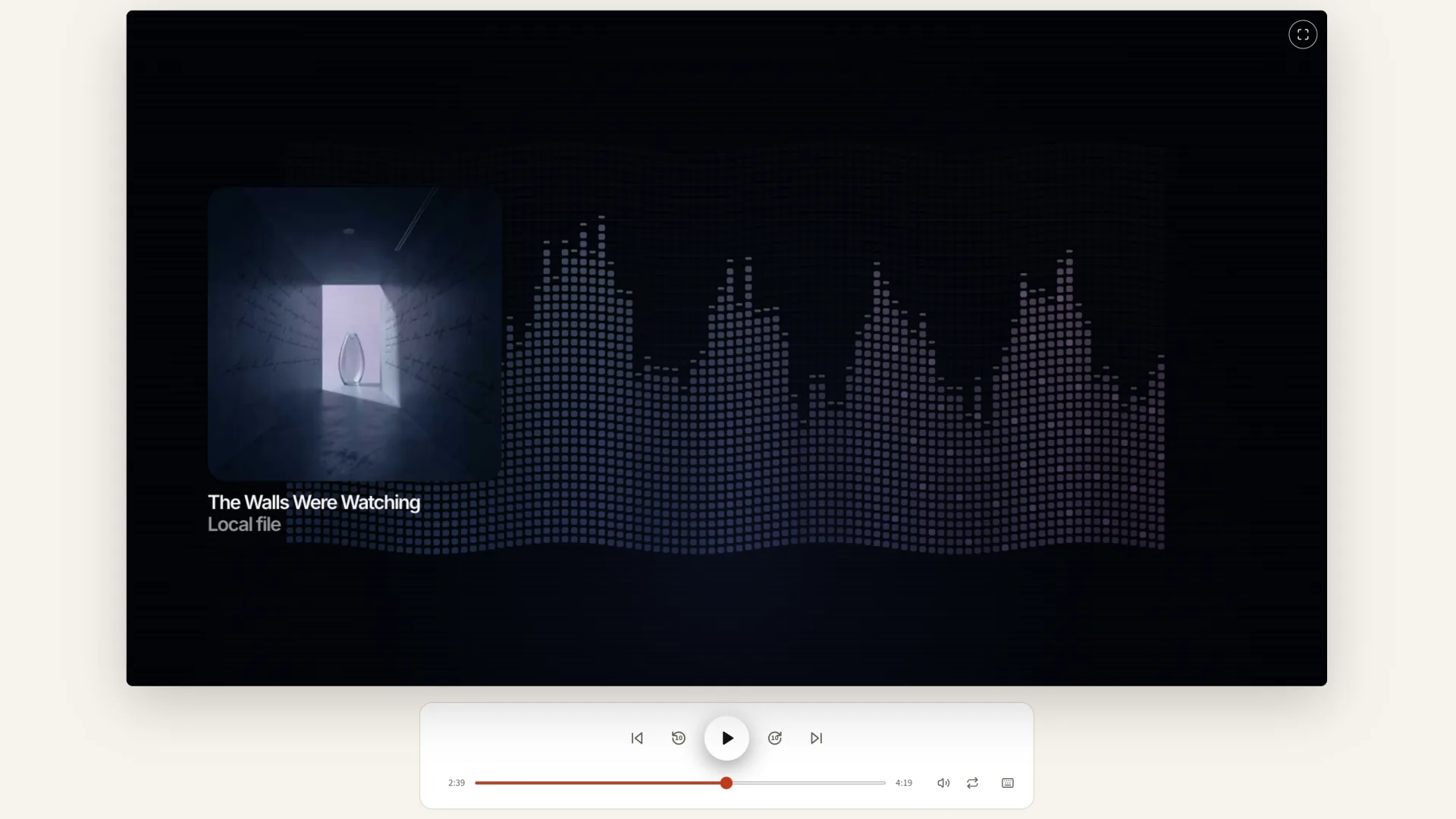
Here's the reality: you can't make Spotify display lyrics for local files. But you can embed synced lyrics into your audio files so they work in players that do support them. Many music players — including some that sync with your Spotify library — will read embedded lyrics perfectly.

The workflow is: transcribe your audio → export as LRC → embed into your MP3/FLAC metadata. Once embedded, the lyrics live inside your audio file and travel with it to any compatible player.

Here's the step-by-step process:

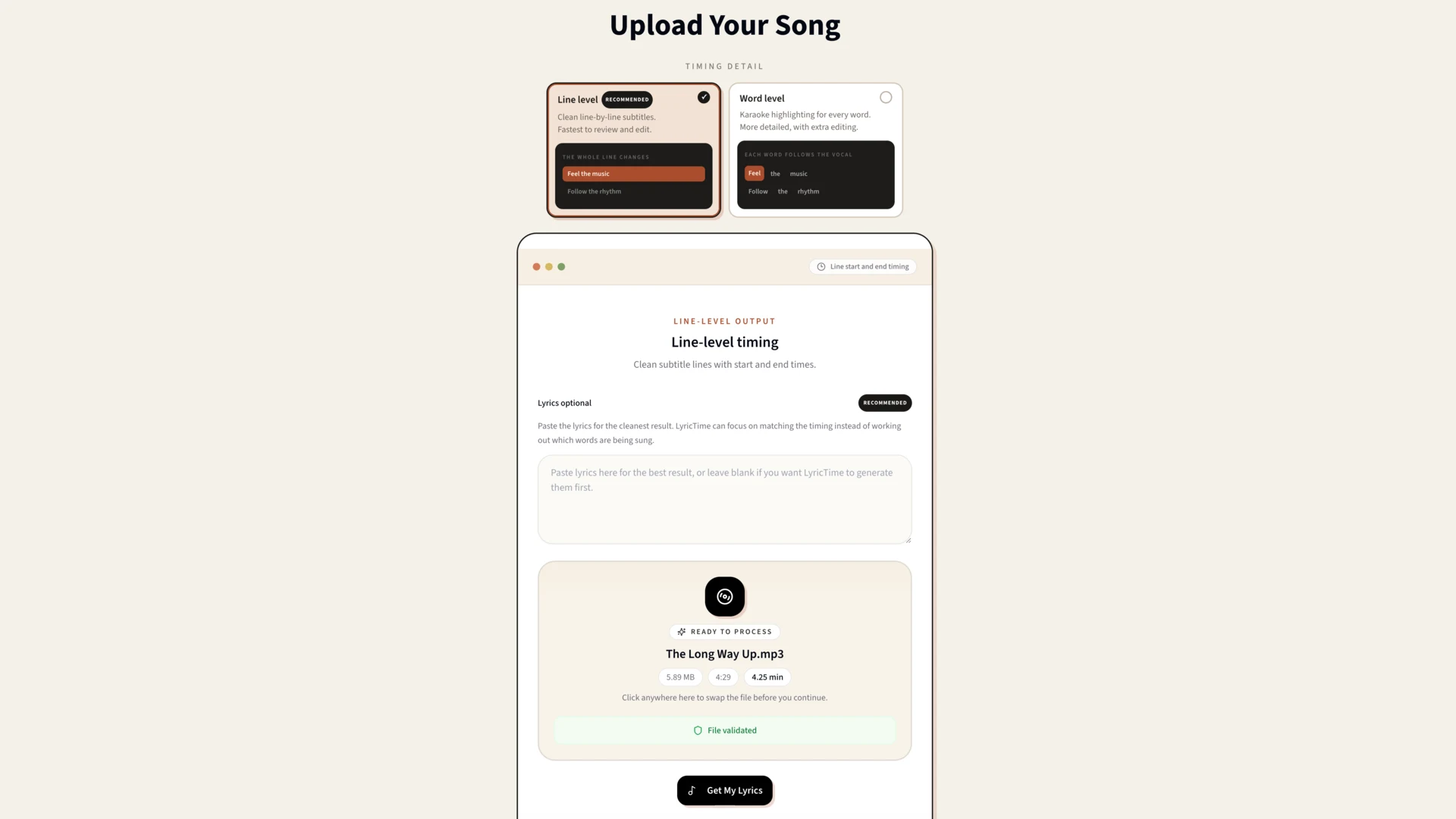
  1. Transcribe your audio file. Upload your MP3, FLAC, or any audio format to LyricTime. The AI transcribes the lyrics with precise timestamps in about 30-60 seconds.
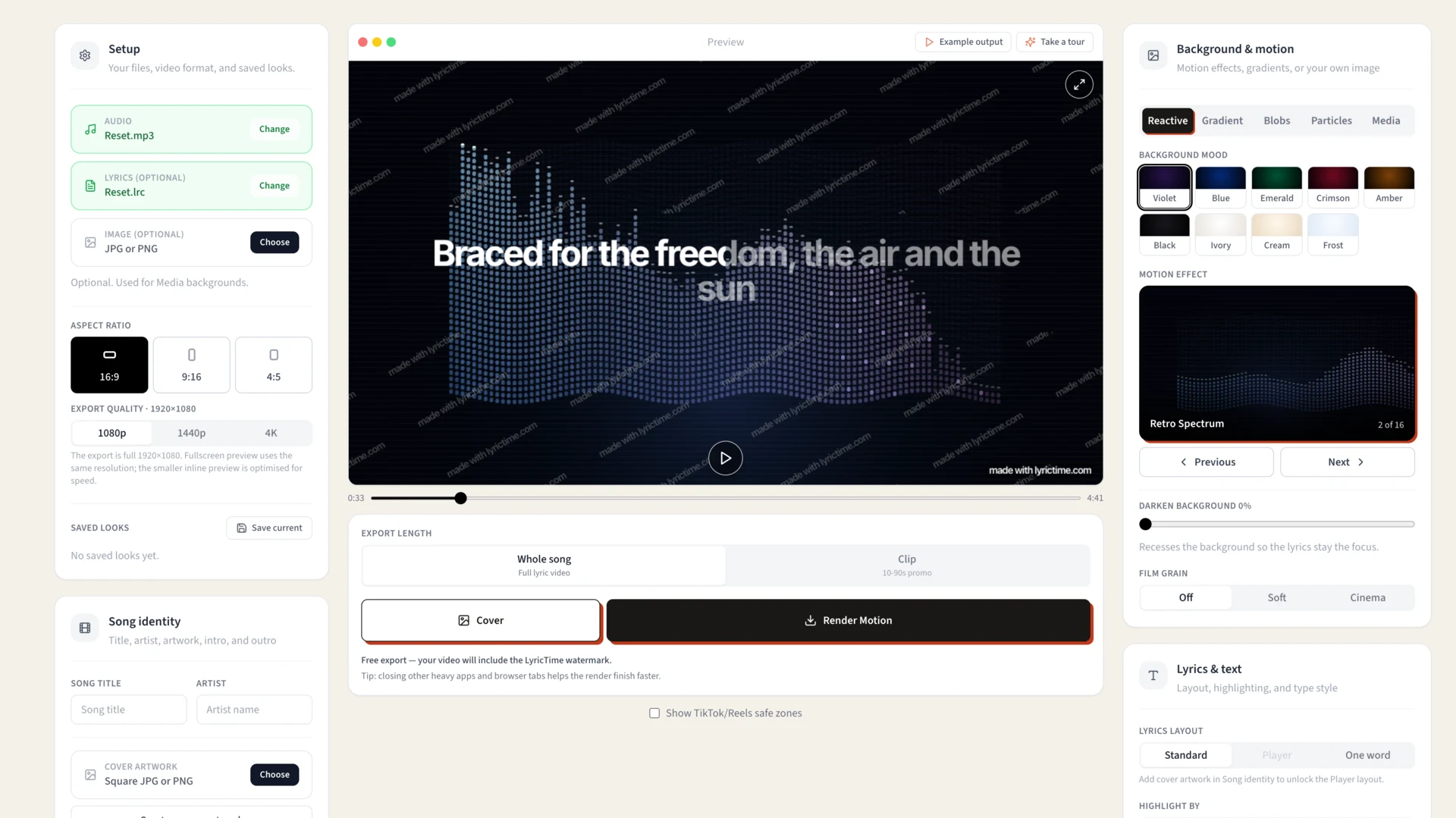
  2. Review and edit. Check the transcription in the visual editor. Fix any words the AI got wrong. Adjust timing if needed — each line is clickable to preview.
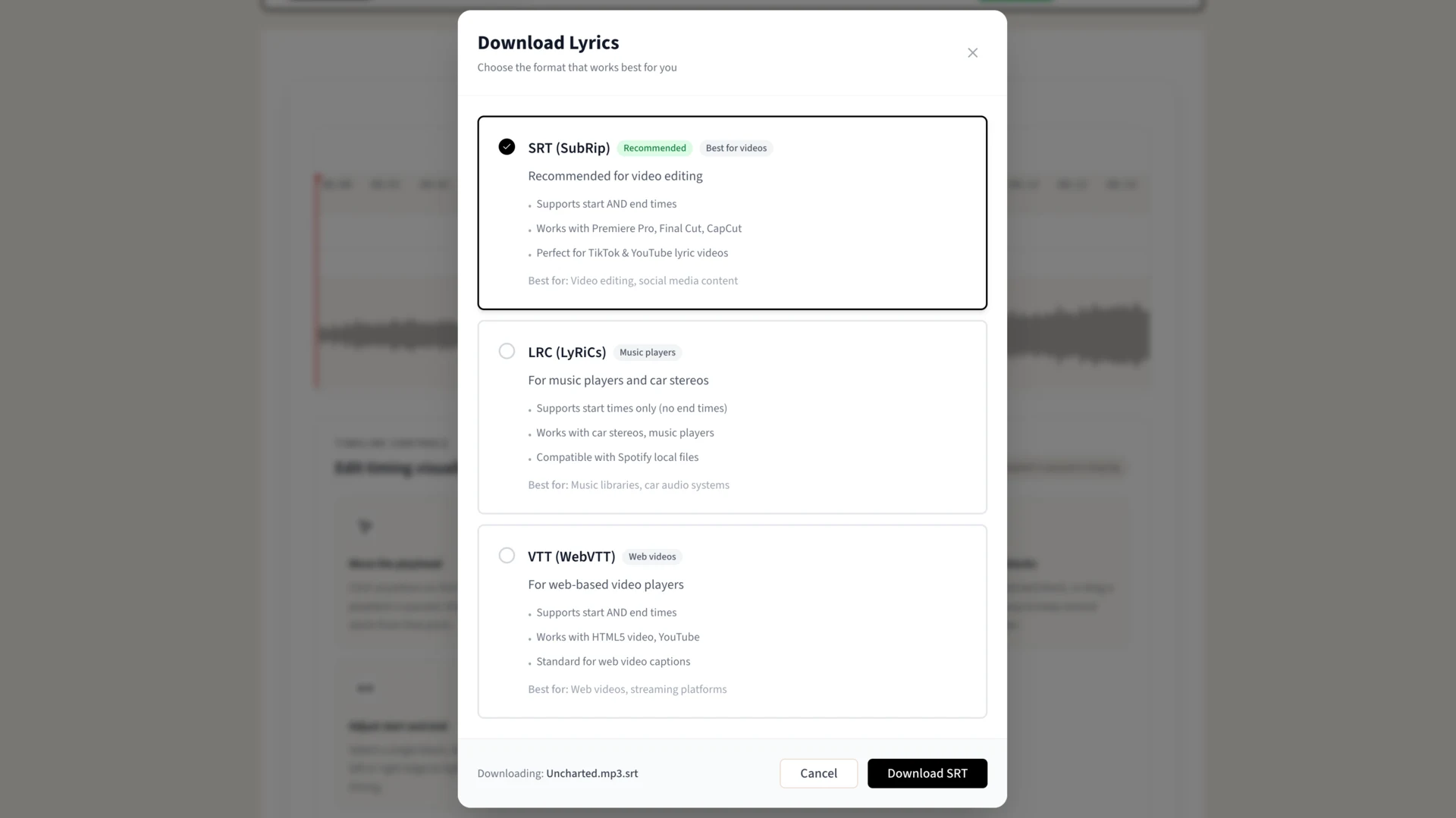
  3. Export as LRC. Download the lyrics in LRC format. This is the standard synced lyrics format that most music software understands.
  4. Embed using a tag editor. Use Mp3tag, MusicBee, or similar software to embed the LRC content into your audio file's metadata. The lyrics become part of the file itself.

Tools for Embedding Lyrics

Once you have your LRC file, you need to embed it into your audio file's metadata. Here are the best tools:

Mp3tag (Windows, free) — The gold standard for audio tagging. Supports embedding synced lyrics (SYLT tag) and unsynced lyrics (USLT). Can batch-process entire folders. Select file → Extended Tags → Add field "LYRICS" → Paste LRC content (with timestamps).

MusicBee (Windows, free) — Full-featured music player with excellent tagging capabilities. Can display and embed synced lyrics natively. Right-click track → Edit → Lyrics tab → Paste LRC content or import from file.

Kid3 (Windows/Mac/Linux, free) — Cross-platform tag editor. Good option for Mac users who need Mp3tag-like functionality. Open file → Add Frame → Unsynchronized Lyrics or Synchronized Lyrics.

Sidecar LRC files — Alternative approach: instead of embedding, keep the LRC file alongside your audio with matching filenames. Many players support this. Example: song.mp3 + song.lrc in the same folder.

Music Players That Display Embedded Lyrics

Once your lyrics are embedded, these players will display them properly:

  • MusicBee (Windows) — Excellent synced lyrics display with customizable panel. The best option for Windows users.
  • foobar2000 (Windows) — With ESLyric component. Highly customizable, beloved by audiophiles.
  • AIMP (Windows) — Built-in lyrics panel, reads embedded and sidecar LRC files automatically.
  • Swinsian (macOS) — The best iTunes alternative for Mac users who want lyrics support.
  • Poweramp (Android) — Reads embedded lyrics and sidecar LRC files. Great for mobile listening.
  • Musicolet (Android) — Free, no ads. Excellent LRC support with scrolling lyrics display.
  • Dopamine (Windows) — Modern Spotify-like interface with native synced lyrics support.
  • Car stereos — Many head units read LRC files from USB. See our car stereo article for details.

Why not just use Spotify? These players actually sound better for local files. They support lossless formats (FLAC, ALAC), have better EQ options, and don't compress your carefully curated high-quality audio. Plus, you own your library — no worries about songs disappearing from streaming.

Processing Your Entire Library

If you have hundreds of local files that need lyrics, here's an efficient approach:

  • Prioritize your favorites. Start with albums you listen to most. You don't need lyrics for everything — focus on music where you actually want to sing along or study the words.
  • Use consistent file naming. Keep your LRC exports named identically to your audio files. This makes embedding easier and enables sidecar mode for players that support it.
  • Batch embed with Mp3tag. Mp3tag can process entire folders. Once you have your LRC files, you can embed them all in one operation rather than file-by-file.
  • Work at your own pace. LyricTime minutes never expire. Buy a pack and use it over months or years. No pressure to process everything at once.

FAQ

Will this make Spotify show lyrics for my local files?

No. Spotify doesn't read embedded lyrics — it only shows lyrics from their server. But you can use other players (MusicBee, foobar2000, Poweramp) that do support embedded lyrics. Many people maintain separate apps for local files and streaming.

What's the difference between embedded and sidecar LRC?

Embedded lyrics are stored inside the audio file's metadata — they travel with the file. Sidecar LRC files sit alongside the audio (same folder, same name). Both work; embedded is cleaner, sidecar is easier to edit later.

Does embedding lyrics change my audio quality?

No. Lyrics are stored in metadata tags, completely separate from the audio data. Your audio quality is untouched. The file size increases slightly (a few KB for lyrics text) but that's it.

What about FLAC files? Does it work the same?

Yes. FLAC supports Vorbis comments which can store lyrics. Mp3tag and other tools handle FLAC tagging just like MP3. The process is identical.

Can I use this for Bandcamp purchases?

Absolutely. Bandcamp files are just regular audio files (usually FLAC or MP3). Upload to LyricTime, transcribe, export LRC, embed into the file. Perfect use case since most Bandcamp releases aren't on lyrics databases.

Ready to try LyricTime?

Get Lyrics for Your Local Files

Use the demo to preview quality and editing workflow, then choose a minute pack to process your own local files.

Typical transcription: ~30-40s
Edit and export in one workflow
LRC, SRT, and VTT export

Minute packs start at $3 • No subscription